
How much time does JobWhat save? We did the math (and the banana bread) 😊
JobWhat's Metrics tab counts the minutes you didn't spend typing application forms. Here's how it's measured, what it's worth per hour, and how to spend it.
5 min readJobWhat Team
- Productivity
- Autofill
- Job search
- Metrics
Job searching has a special kind of boring. Not the exciting part, where you find a role that fits and write something real about why. The other part: typing your name, your email, your phone number, your LinkedIn URL, your city, your "How did you hear about us?" and your work history into form number 47. That's the same work history you typed into form number 46, twenty minutes ago.
That's the part JobWhat does for you. And because "trust us, it's faster" isn't a number, the extension counts. Open your job log, click Metrics, and it tells you roughly how much of your life it handed back.
Below is what that looks like after 12 weeks of a fictional, very diligent product designer's search, how the number is worked out, what it's worth in money, and, most importantly, what you could be doing instead.
Your time back, in one screen
The top of the Metrics tab is a row of cards. In our sample 12 weeks: 105 forms autofilled, 1,648 fields typed for you, and 6.4 hours saved, about 3.6 minutes per form. 27 of those applications were submitted by the apply queue without anyone clicking anything.
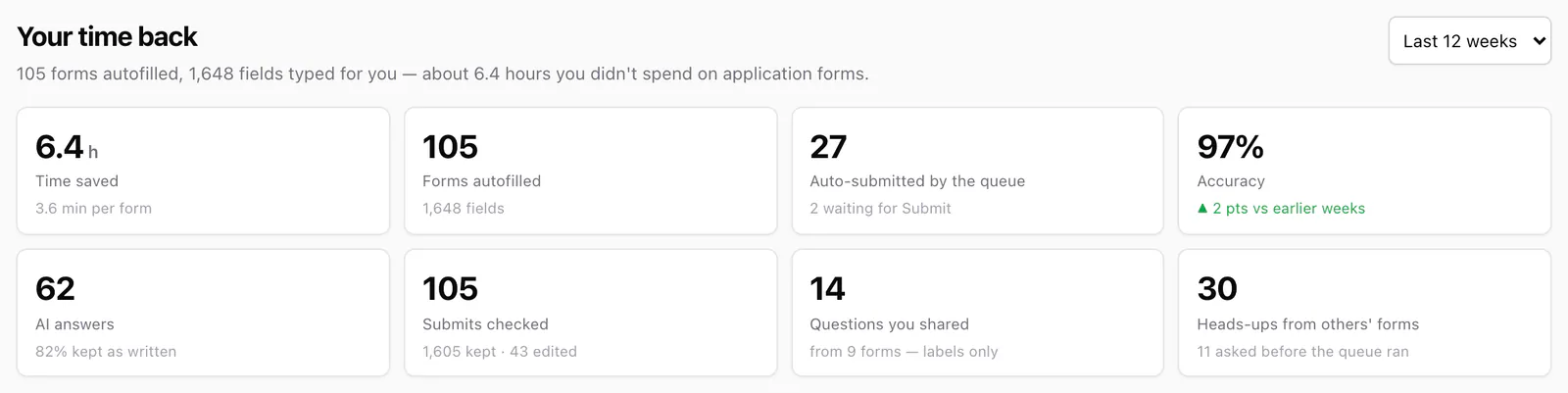
The other cards answer "yes, but was it right?":
- Accuracy is the share of fields JobWhat filled that you left exactly as they were when you pressed Submit. 97% here, up 2 points on the earlier weeks.
- AI answers are the questions no rule could fill, answered by AI from your résumé and profile. The card shows how many you kept as written.
- Questions you shared and heads-ups come from the apply queue. When a required question stumps everything, its label (never your answer) warns the next person who queues that job, and vice versa.
The minutes saved chart (now with a smiley)
This is our favorite chart. It's the running total of minutes saved, week by week, so it only goes up. At the tip of the line sits a small smiley with a note about what the time is for. It rotates daily between a nap, yoga, banana bread, a dog walk and ukulele practice. Today it's banana bread.
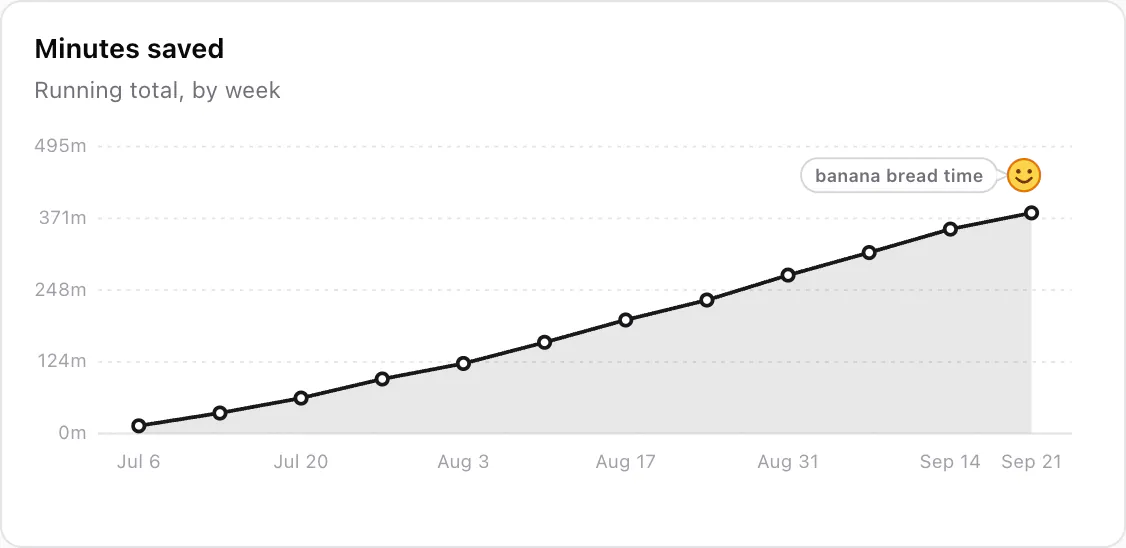
Yes, the smiley is in the actual extension, not added for this post. Job searching has enough charts that go the wrong way.
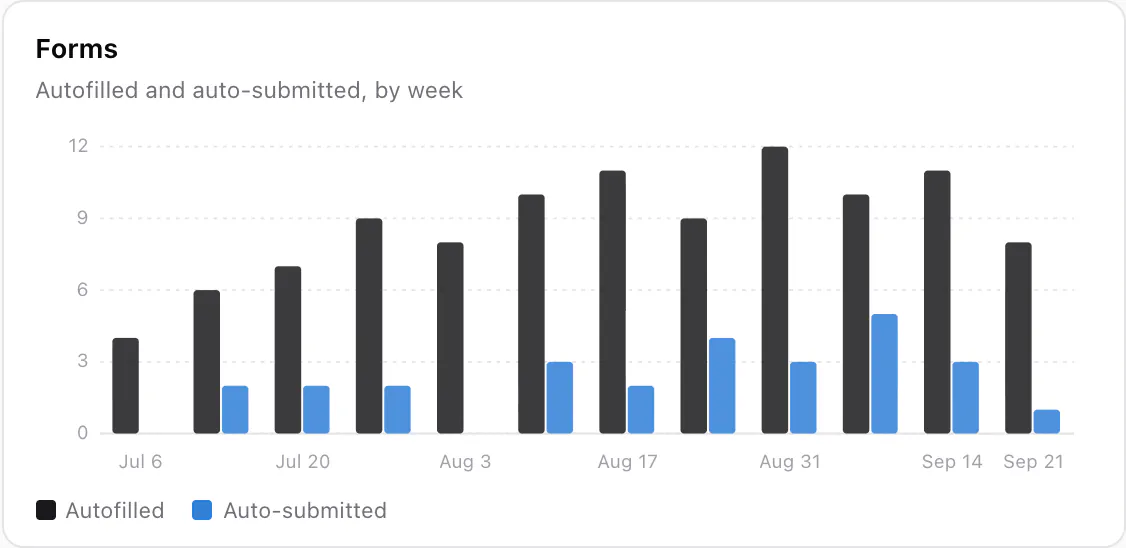
Next to it, the Forms chart splits each week into forms autofilled and forms the queue submitted for you. From the second week, the queue pulls its weight. You queue jobs while browsing LinkedIn, and JobWhat fills each company's application on Greenhouse, Ashby, Lever or Gem in the background. Complete ones can go straight through, and the rest stop at Hit Submit for you to check.
How the minutes are counted (honestly)
We'd love to say JobWhat has a stopwatch on your life. It doesn't. The number is an estimate per form, and it's deliberately simple:
- Every autofilled form starts at 3.5 minutes. Filling a typical application form by hand takes us 3 to 4 minutes: contact details, links, work history, the dropdowns, the "Are you authorized to work…" radio buttons.
- That's scaled by how much JobWhat filled. If it filled 16 of 18 fields and left 2 for you, the form counts 16/18 of 3.5 minutes. A form where it could barely help still gets a quarter, because it at least found the fields and typed your name.
- An auto-submitted form adds 1 minute for opening the posting, uploading your résumé and pressing Submit, which the queue did instead of you.
- A form, by hand3.5 minOur flat estimate for typing one application form
- × share JobWhat filled16 of 18Fields left for you shrink the credit (never below a quarter)
- = this form3.1 min3.5 × 16 ÷ 18
- + auto-submitted+1 minOnly when the queue opened, attached and submitted it for you
What it doesn't count, on purpose: reading the job description, deciding whether to apply, tailoring your résumé, or writing the answers you'd want to write yourself. Those are worth your time, and we'd rather undercount than tell you JobWhat saved you 40 minutes on a form that took you 5. It also counts the fill, not the result. If you then edit a field, that shows up in Accuracy, not in minutes.
All of this is worked out inside the extension from events stored in your browser. The Metrics tab doesn't send your numbers anywhere to be calculated.
What your time is worth
6.4 hours in 12 weeks sounds modest until you remember it's the most boring 6.4 hours of the whole search. Here's that time at a few hourly rates, plus a year at the same pace (about 28 hours):
At a mid-range $50 an hour, that's $320 of form-typing in three months, and around $1,400 a year. We're not saying JobWhat pays for itself. We're saying it pays for a lot of banana bread.
What to do with 6.4 hours (anything but job search)
Please don't spend the time on more job search. You're already doing plenty. Here's what 384 spare minutes turns into:
- 6yoga classesSavasana included. Nobody asks for your LinkedIn.
- 5banana breads15 minutes of mashing, an hour of the house smelling amazing
- 19power napsThe only kind of work-life balance we can promise
- 12dog walksYour dog has been very patient about this job search
- 38calls to your grandmaShe'll want to know about the job search. Change the subject.
- 1three-layer birthday cakeIncluding the frosting meltdown at hour five
Our recommendation: one yoga class, two banana breads, and a nap. Then go apply to the three jobs that actually fit. JobWhat will fill them in while the bread cools.
Jobs by day: the rest of the picture
Minutes saved is about forms. The Jobs by day chart is about everything around them: each day's jobs you viewed, submitted, hid, started watching or queued, stacked by kind. It's the quickest way to see your rhythm. You'll spot the weekday streaks and the weekend gaps (good), and the days you hid 15 jobs in a row (also good; that's what hiding is for).
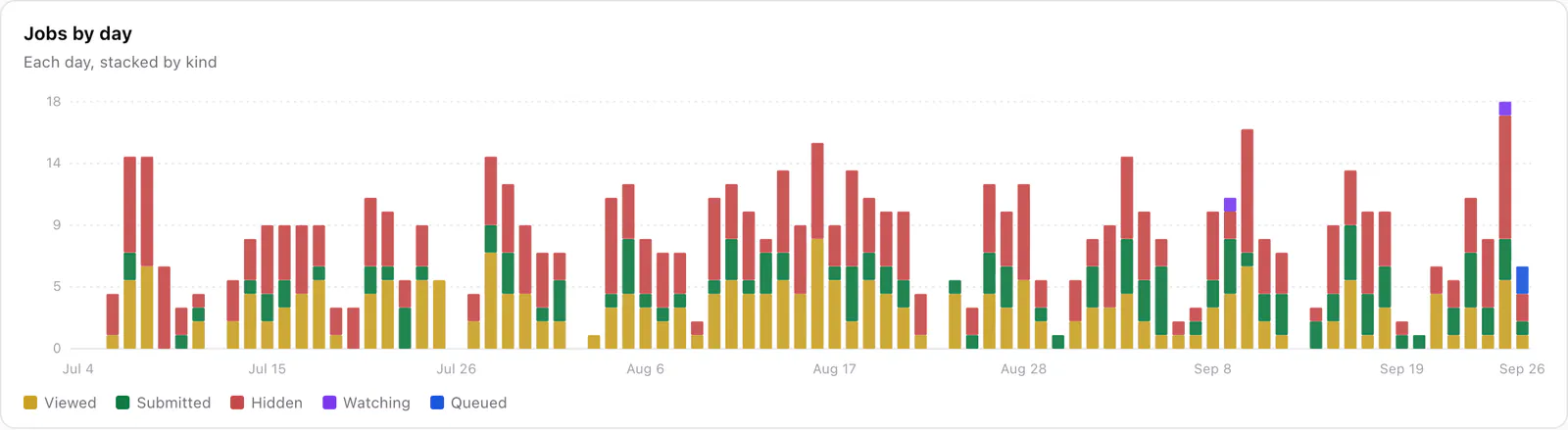
The views and hides come from browsing LinkedIn with JobWhat, where viewed jobs turn yellow and hidden ones disappear from later searches. Our LinkedIn saved searches routine shows how to keep those bars short and useful.
See your own numbers
- Install JobWhat and add your profile and résumé once.
- Apply the way you already do. Each form JobWhat fills adds to the count, and each Submit tells it how accurate it was.
- Open the job log, click Metrics, and pick a range: the last 30 days, 12 weeks, 26 weeks, a year or all time.
- Find the smiley. Do what it says.
Want to save even more? The apply queue in our LinkedIn job search tricks post lets you line up applications while you browse, and better LinkedIn job alerts brings you only new, well-matched jobs, so fewer minutes go into scrolling past the ones you've already seen.
Add JobWhat to Chrome, then go make the banana bread. You've earned it.