
LinkedIn Search Hell, Part 2: Just say it in English 😊
Describe the job you want in plain English and let AI fill in the LinkedIn search, then let JobWhat skip the jobs you've seen, the titles you'd never take and the duplicates.
11 min readJobWhat Team
- Job alerts
- AI
- Productivity
Previously, in Part 1: a "proper" LinkedIn search turned out to be 393 characters of nested parentheses, uppercase-only operators and quoted phrases, plus a link full of codes like f_TPR=r172800 and f_E=4,5. Typing plain English into LinkedIn's AI search didn't help either: "bay area last 48 hours" stayed words, not filters. Our free LinkedIn search builder made the syntax readable. But you still had to think in LinkedIn's terms.
This part is about not doing that at all. You say what you want, AI fills in the search, and then JobWhat cleans up everything LinkedIn leaves behind.

The searches, jobs, companies in screenshots and numbers below are fictional.
What the extension does after you search
A LinkedIn link can only describe a search. The JobWhat extension takes it from there:
- Skips jobs you've already seen. Jobs you've viewed, hidden, applied to or kept in your Job Log don't come back.
- Shows each job once, even across searches. A job one alert already found doesn't show up again under another. Picking a Primary alert that collects the shared jobs: 🧪 Our mad data scientists are working on something crazy (coming soon).
- Skips reposts. If a company re-posts a job you've already seen (same company, title and location), you don't see it again.
- Checks more often than LinkedIn emails you. LinkedIn's job alert emails come daily or weekly. JobWhat checks each LinkedIn search every 3 hours by default, and you can pick anything from every hour to every 48 hours.
- Lets you search your results with no syntax. Type a few letters to match title, company and location, plus your notes in the Job Log.
- Understands plain English. 🧪 Our mad data scientists are working on something crazy (coming soon): describe the job you want and AI fills in the search, job type included.
Describe the job you want, let AI fill in the search
🧪 Our mad data scientists are working on something crazy (coming soon). The JobWhat extension is getting a box called Describe the job you want, in Job Alerts, at the top of the LinkedIn search editor.
You write something like this:
Senior product manager roles in the Bay Area or remote, AWS or cloud infrastructure, posted in the last 48 hours, full-time only, no contract or intern roles, skip Globex and Initech, paying at least $180k
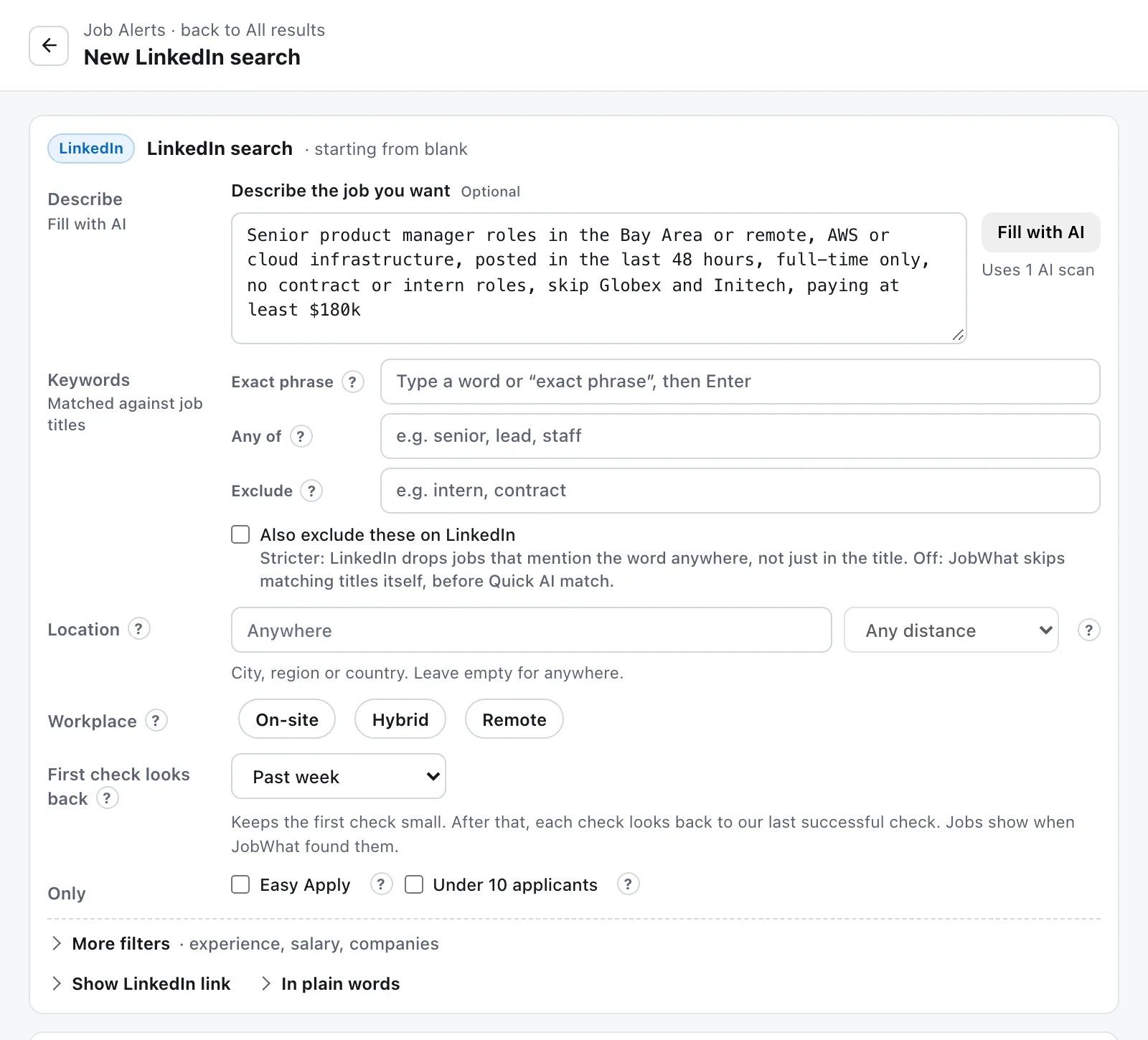
Then you press Fill with AI. AI reads the request and fills in the editor's fields, one by one, and the extension builds the LinkedIn link from those fields:
- Exact phrase: "product manager". Any of: AWS, "cloud infrastructure".
- Exclude: contract, intern. These are matched against job titles, and JobWhat skips matching titles itself before scoring, unless you tick Also exclude these on LinkedIn.
- Location: San Francisco Bay Area, with On-site, Hybrid and Remote all allowed.
- Experience: Mid-Senior. Salary: $180k+.
- First check looks back: Past 3 days. Job Alerts only needs a date window for its first check; after that, each check looks back to the last one, so "the last 48 hours" is covered from then on.
- Job type: Full-time.
- Never show these companies: Globex, Initech.
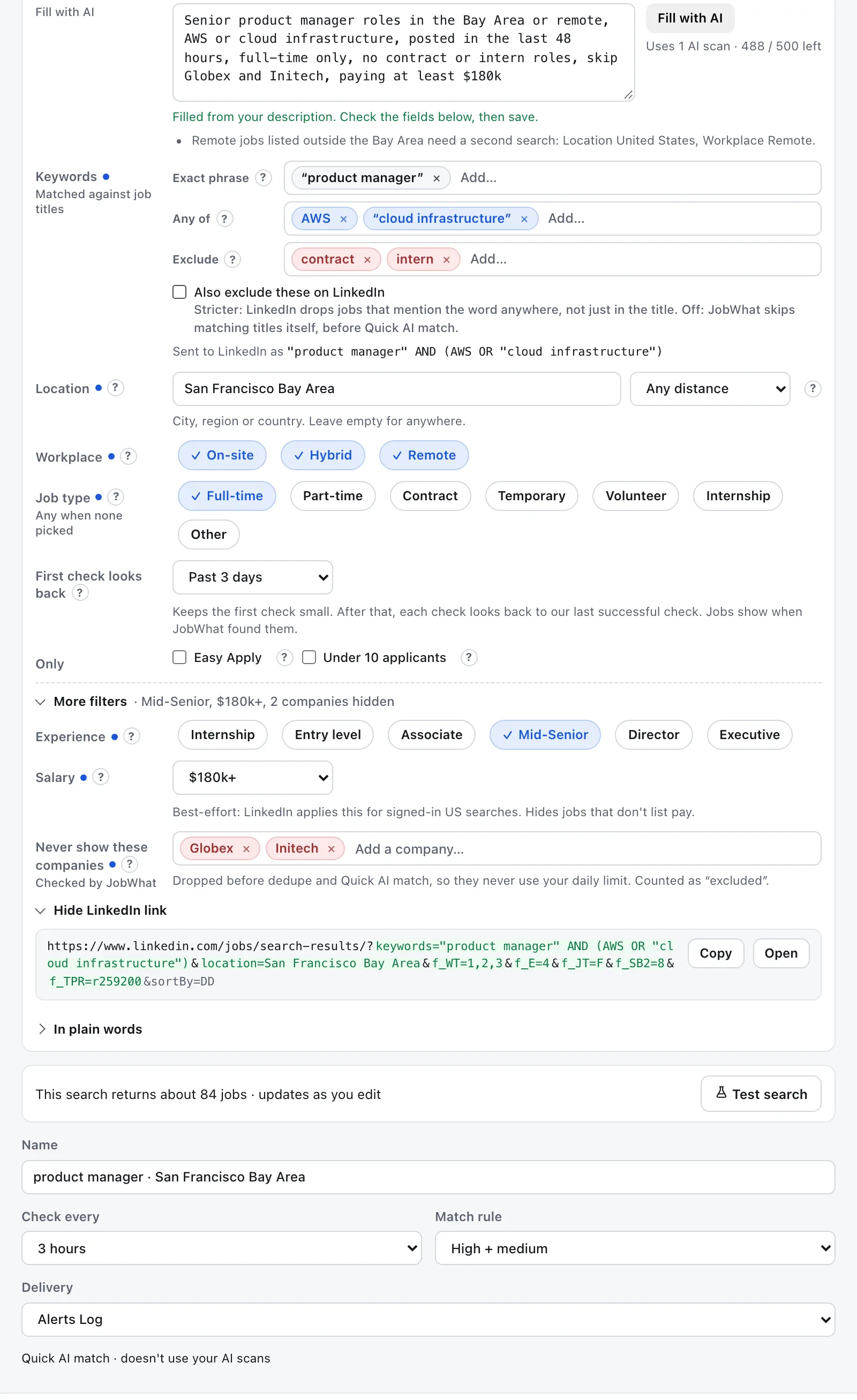
When something doesn't fit, you get a note instead of a silent guess. Here, there's a reminder that "Bay Area or remote" really means two searches: one for the Bay Area and one for remote jobs listed nationally.
Compare that with the 393-character monster from Part 1. Same intent, zero parentheses.
A few things worth knowing:
- It uses AI from your allowance, the same single AI allowance every AI feature in JobWhat shares. See AI allowance.
- Nothing is saved until you say so. Every field stays editable, and Test search shows roughly how many jobs match before you commit.
- Then it runs on a schedule. Save it and Job Alerts checks the search every 3 hours (or however often you pick), and shows only jobs you haven't seen, scored for résumé fit.
Hide jobs by company and title, not by keyword
Remember the NOT Amazon and NOT senior traps from Part 1? LinkedIn's NOT drops a job if the word appears anywhere in the listing. JobWhat hides jobs by who's hiring and what the job is called instead. It all lives in one place: Settings → Hide jobs. The rules work on LinkedIn job search results and collections pages, and in Job Alerts. Your LinkedIn search itself is never changed.
Titles
- Hide titles with these words. Plain words and phrases, matched as whole words in any case: "Senior" hides "Senior Designer," not "Seniority Analyst."
- Hide titles like — matched by AI. Describe what you don't want and AI matches by meaning, so "senior-level roles" also catches Sr., Lead, Staff and Principal titles, without you listing every variant.
On a LinkedIn results page, a note above the list says how many jobs JobWhat hid and why, with Show them if you want to peek (and Hide them again when you're done).
Companies
🧪 Our mad data scientists are working on something crazy (coming soon).
- Never show these companies. Plain company names. No LinkedIn company ids, no
NOTtricks. AI also catches other names for the same company, like Meta for Facebook or Amazon for Amazon Web Services (AWS). It asks whether a job is from that employer, so a job that merely mentions the name, or a recruiter posting on its behalf, doesn't count. - Only show these companies — optional. Leave it empty to see every company. Add a few names and JobWhat hides jobs from all the others.
AI matching for companies and for Hide titles like uses your AI allowance. It needs Title match turned on, and it only asks AI about names and titles the exact match can't decide; if AI isn't available, JobWhat falls back to exact names and title words. In Job Alerts, hidden jobs are dropped before Quick AI match, so they don't use that either.
After the search: the cleanup LinkedIn doesn't do
A good search is half the battle. The other half is not reading the same job five times. This is where JobWhat saves the most time.
Jobs you've already dealt with stay gone
Before a job shows up in Job Alerts, JobWhat checks it against what you've already done and skips:
- jobs you've viewed or hidden with JobWhat
- jobs you've applied to or kept in your Job Log, including ones you've since deleted
- jobs another of your alerts has already shown you
- duplicates of any of those, matched by the job link or by company, title and location
Each check tells you how many duplicates it removed, like "12 duplicates (9 in Job Log, 3 already in Alerts)," so you know it's working rather than just quiet.
Reposts are skipped too
If a company re-posts a job you've already seen (same company, title and location), we don't show it again. LinkedIn gives a repost a new link, so it looks brand new there. JobWhat compares it with your history and doesn't trip over small differences in capitals and punctuation, "Sr." versus "Senior," "Inc" or "LLC" on the company name, or how the city is written.
It isn't a mind reader, though. A reworded title, a different city (or Remote instead of a city) or a different company name counts as a new job, so you'll see those. Each check's summary saying how many reposts it skipped, like "3 reposts skipped": 🧪 Our mad data scientists are working on something crazy (coming soon).
It checks more often than LinkedIn emails you
LinkedIn's job alert emails come daily or weekly. That's slow when a good posting gets a hundred applicants by lunchtime. Job Alerts checks each saved LinkedIn search every 3 hours by default, and you can choose every 1, 2, 3, 4, 6, 8, 12, 24 or 48 hours instead. Checks run in your own browser while Chrome is open, and each one looks back to the previous check, so nothing falls through the gap.
Search your logs without any syntax
After fighting LinkedIn's operators, this should feel good. The search box in the Job Log is plain text: type a few letters and it matches the job title, company and location, plus your notes. No quotes, no capitals, no AND, and no AI involved, just simple text matching. The Job Alerts list has the same kind of search over title, company and location. In the Job Log, filters for kind, status and date range sit right next to it.
One Primary alert, so overlapping searches stay quiet
🧪 Our mad data scientists are working on something crazy (coming soon). If you run a few searches, they overlap. "PM · Bay Area" and "Cloud PM · Remote" will share plenty of jobs, and today JobWhat shows each shared job once, under whichever search found it first. Soon you'll be able to choose where shared jobs go.
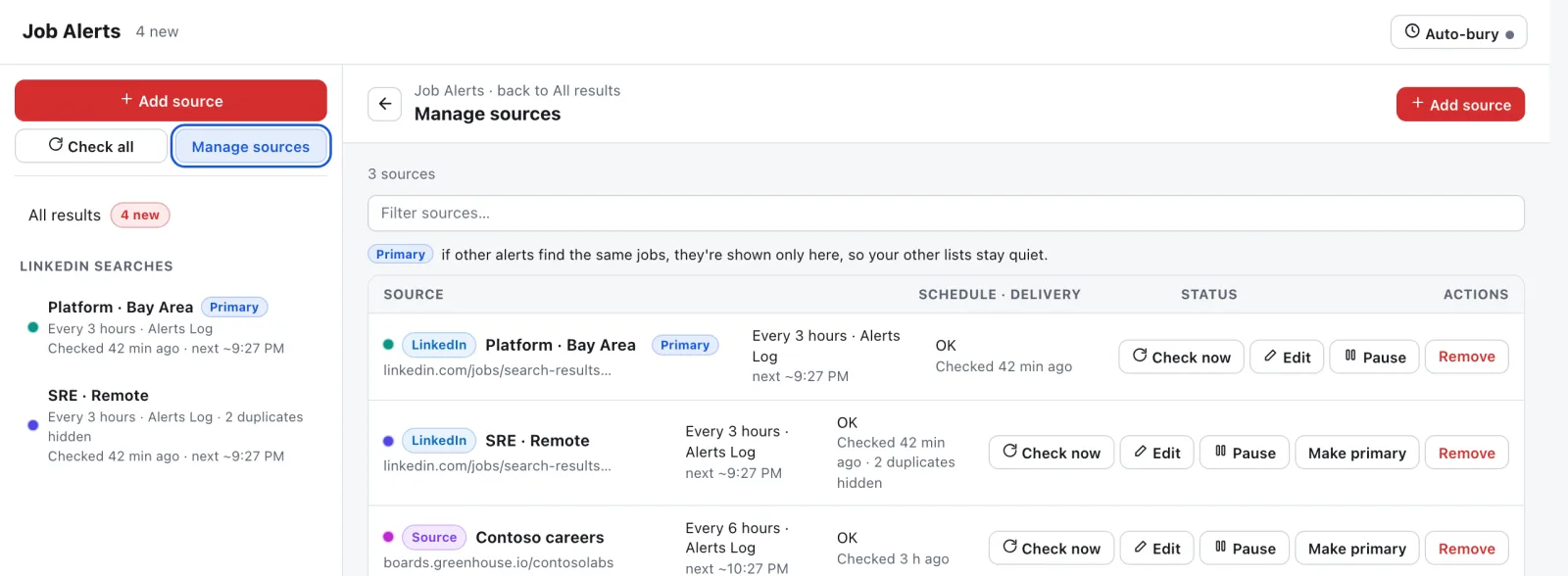
One alert carries a Primary badge. In the words of the help line: "Primary: if other alerts find the same jobs, they're shown only here, so your other lists stay quiet."
- By default, your first alert is Primary. Press Make primary on any other alert in Manage sources to switch.
- If you delete the Primary alert, the next one becomes Primary automatically.
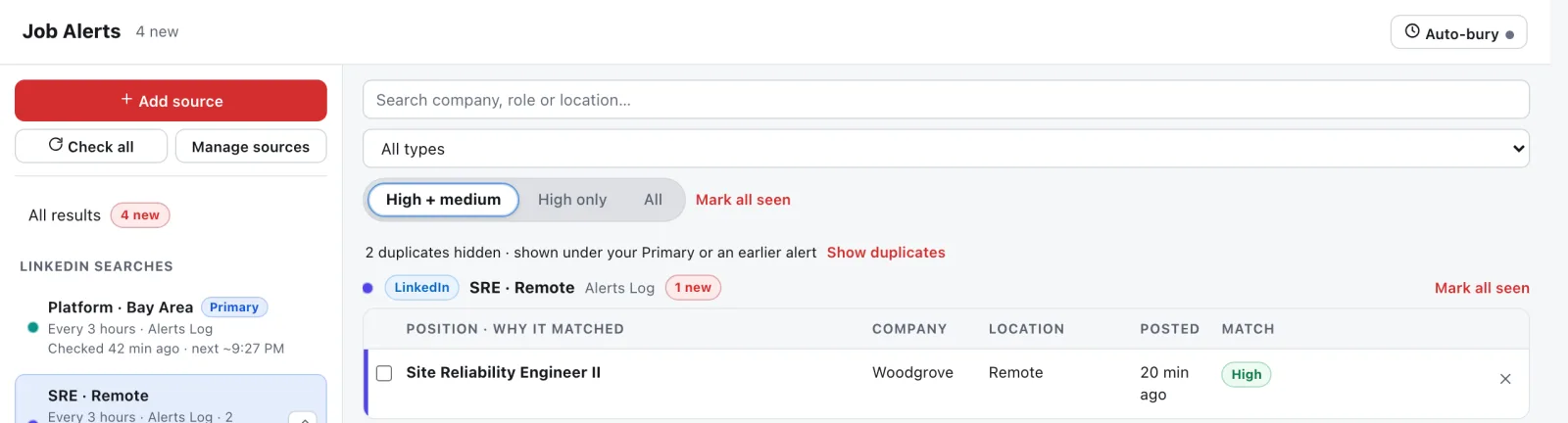
- Other alerts show a line like 2 duplicates hidden, with a Show duplicates link if you want to see them anyway.
- Each job shows once, and nothing is deleted.
The extension or the web page?
Both are built to get you out of search hell. They do different jobs:
| jobwhat.app/linkedin | JobWhat extension | |
|---|---|---|
| Cost | Free | Free plan, plus a 14-day Pro trial |
| Install | Nothing, runs in your browser | Chrome extension |
| Build a LinkedIn search | Builder with every filter | LinkedIn search editor in Job Alerts |
| Explain a pasted link | Yes, part by part, with a stricter version | Reads a pasted link into the editor |
| Plain-English request | No | Fill with AI 🧪 (coming soon) |
| Runs your search on a schedule | No | Yes, every 3 hours by default (1 to 48 hours) |
| Skips jobs you've seen, applied to or hidden | No | Yes |
| Skips reposts and jobs another search found | No | Yes |
| Search your results without syntax | No | Yes: title, company, location, and notes in the Job Log |
| Hide titles by words or by meaning (AI) | No | Yes, on LinkedIn results and in Job Alerts |
| Hide or only show companies by name | No | Never show / Only show these companies 🧪 (coming soon) |
Use the web page when you want a good link fast. Use the extension when you want the search to keep working for you.
Recipes you can steal
Say these to Fill with AI once it ships, or build them in the builder today:
- New grad, fresh roles: "Entry-level data analyst jobs, full-time, posted this week." In the builder:
"data analyst" NOT senior, Entry level (f_E=2), Full-time (f_JT=F), past week (f_TPR=r604800), most recent (sortBy=DD). - Remote-only senior: "Senior or staff backend engineer, fully remote, anywhere in the US." In the builder:
"backend engineer" AND (senior OR staff), United States, Remote (f_WT=2), Mid-Senior (f_E=4), most recent. - Contract-only: "UX designer contract or temp roles." In the builder:
"UX designer", Contract and Temporary (f_JT=C,T), past week, most recent. Leave "contract" out of the keywords; the filter does it properly. - Fresh jobs every morning: your usual search plus past 24 hours (
f_TPR=r86400) and most recent, then paste it into Job Alerts and let JobWhat check it every 3 hours.
AI search or regular search?
- Use LinkedIn's AI search to explore. "Roles like mine at climate startups" is a fine question for it. Expect loose results, and don't expect operators to be followed.
- Use regular search to be precise. Exact titles, a real location, a date window, newest first. That's what you want for a daily check or an alert.
- Use the builder when you know what you want but not the syntax.
- Use Fill with AI when you'd rather just say it, and let AI turn plain English into regular-search fields you can check before saving.
FAQ
Does Fill with AI use my AI allowance? 🧪 Our mad data scientists are working on something crazy (coming soon). When it ships, yes: each press uses a little of your AI allowance. Job Alerts' résumé scores use Quick AI match, which draws from the same allowance.
Can I hide a company without hiding every job that mentions it? That's what Never show these companies in Settings → Hide jobs is for: plain names, with AI catching other names for the same employer, on LinkedIn results and in Job Alerts. 🧪 Our mad data scientists are working on something crazy (coming soon).
Will I see the same job from two of my searches? No. JobWhat shows each job once. Once the Primary alert ships, shared jobs go under your Primary, and the other alerts show how many duplicates they hid.
How is hiding titles in JobWhat different from NOT in LinkedIn?
LinkedIn's NOT drops a job if the word appears anywhere in the listing. Hide titles with these words looks only at the job title and matches whole words, and Hide titles like uses AI to catch variants like "Sr." and "Principal." AI matching uses your AI allowance.
Do I need the extension to use the LinkedIn search builder? No. jobwhat.app/linkedin works on its own, for free.
Get out of search hell
- Paste your current LinkedIn search into jobwhat.app/linkedin and see what it really does.
- Apply the suggestions, load the stricter version and copy the link.
- Paste that link into JobWhat's Job Alerts, and let it check for new jobs while you do literally anything else.
Missed the first half? Part 1: You need a math degree to find a job has the monster query, the 7 deadly sins and the cheat sheet. More on the same theme: better LinkedIn job alerts and a daily routine for saved searches.
Add JobWhat to Chrome and never type f_TPR again.